Beyond the Run Button: Android Debugging with ADB and Gradle
Essential CLI techniques for Android engineers to isolate failures, capture precise bug reports, and debug efficiently outside Android Studio.
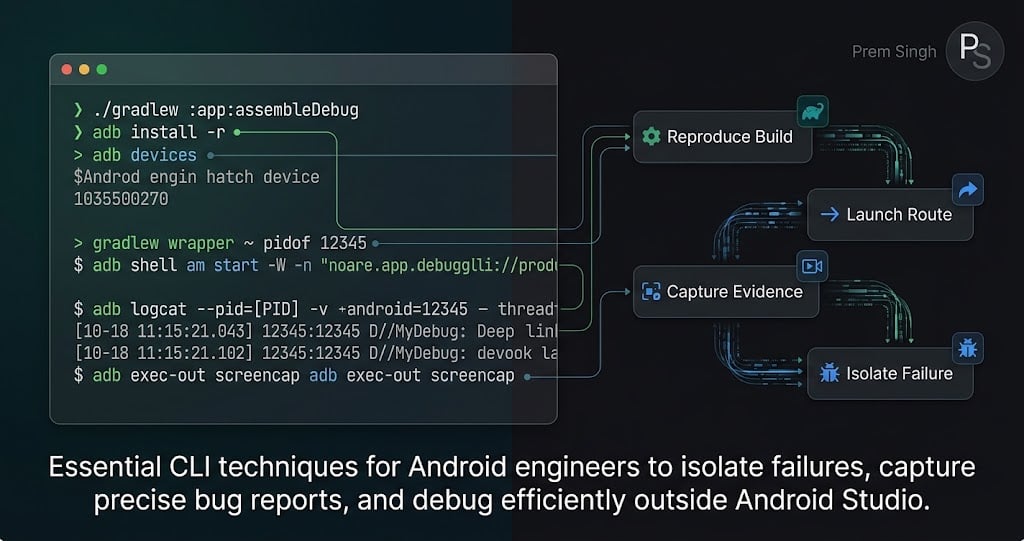
“It works when I press Run” is a starting point. A useful debugging workflow also lets another developer reproduce the same build, launch the same route, and collect evidence of the failure.
Here is a compact terminal workflow for a debug app. Each step answers a question rather than adding another command to memorize.
Before you start
Examples use macOS/Linux shell syntax, an app module, and a debug variant. On Windows, use gradlew.bat and adapt shell variables and quoting. Run Gradle commands from the project root. Your configured JDK must be compatible with the project's Android Gradle Plugin.
Have SDK Platform Tools on your PATH and an authorized test device or emulator connected:
adb devices -l
export ANDROID_SERIAL=emulator-5554
Replace the serial with one from the output. ANDROID_SERIAL selects the target for subsequent ADB commands. An unauthorized device needs approval on the unlocked device.
1. Can someone else build this exact variant?
Use the project's Gradle Wrapper:
./gradlew :app:assembleDebug
For a conventional project, the APK is at app/build/outputs/apk/debug/app-debug.apk. Flavors and output customization change tasks and paths; inspect the actual project:
./gradlew :app:tasks --all
For a flavor named demo, look for assembleDemoDebug. A successful build produces an artifact; it doesn't mean the app was installed or launched. These task conventions are described in the Android command-line build guide.
2. Is the build on the intended device?
adb install -r app/build/outputs/apk/debug/app-debug.apk
adb shell am start -W -n com.example.debugcli/.MainActivity
Replace the application ID and activity with your debug variant's actual values. -r replaces an installed compatible package while retaining its data. A signature mismatch needs investigation; deleting an app is not a neutral fix because it removes local data.
Alternatively, ./gradlew :app:installDebug builds and installs. Check its output to confirm the selected device or devices when several are connected. See the ADB guide.
3. Which logs belong to the running process?
After launching the app, get its current PID:
adb shell pidof -s com.example.debugcli
Suppose it prints 12345. Use that value:
adb logcat --pid=12345 -v threadtime
Stop streaming with Ctrl+C. An empty PID usually means the process isn't running or the application ID is wrong. Recheck it after a restart: a new process can have a new PID. Separate app processes need separate consideration.
A PID filter is focused, but can hide useful system-side evidence. For crash investigation, also inspect the crash buffer:
adb logcat -b crash -d -v threadtime > crash-log.txt
This dumps available crash-buffer entries, which can include other apps and older failures. Match timestamps and package/process details. It is not a complete ANR diagnosis. Inspect supported options with adb logcat --help; see the Logcat command-line reference.
4. Does the deep link actually reach the right screen?
Assume your manifest declares debugcli://product/42 as a supported route:
adb shell am start -W -a android.intent.action.VIEW -d 'debugcli://product/42' com.example.debugcli
The package restriction checks routing inside your app. Also test without that restriction to observe normal system resolution:
adb shell am start -W -a android.intent.action.VIEW -d 'debugcli://product/42'
Success means more than an activity opening: verify the destination, arguments, sign-in behavior, and Back navigation. A custom scheme doesn't prove HTTPS App Links verification. For HTTPS links, test the real domain and its verification separately. See Create deep links.
5. Does the feature handle a denied permission?
For an app that declares CAMERA and supports runtime permissions:
adb shell pm revoke com.example.debugcli android.permission.CAMERA
adb shell pm grant com.example.debugcli android.permission.CAMERA
Run these separately: revoke, exercise the denied path, then grant and exercise the granted path. Permission changes can affect the app process, so recheck its PID.
Shell grants don't test the permission dialog or every denial state. Also test the real request flow and the feature's fallback behavior. See Request runtime permissions.
6. Can you attach evidence to the issue?
adb exec-out screencap -p > debug-screen.png
adb shell screenrecord --time-limit 20 /sdcard/debug-demo.mp4
adb pull /sdcard/debug-demo.mp4 ./debug-demo.mp4
The recording command waits while recording. Pull the file after it finishes. Standard screenrecord doesn't record audio; protected content may be unavailable. See ADB screen capture and recording.
Turn the workflow into a useful bug report
Attach a short reproduction recipe with the variant, application ID, device/Android version, triggering command, expected result, and observed result. Add a timestamped log excerpt and a short recording when they explain the failure. Use test data and review logs and media before sharing them.
For your portfolio, include a DEBUGGING.md beside a sample app. Document one reproducible bug, the evidence that isolated it, and the fix. That shows the reasoning behind your tooling skills.
Which command saves you the most time when a bug refuses to reproduce from Android Studio?
Official references linked above. Commands are adaptable examples.
Prem Singh · Lead Android Engineer · Kotlin, Jetpack Compose & Android architecture
About the author
- Lead Mobile Engineer based in Dubai, focused on reliable Android and cross-platform products. I work with Kotlin, Jetpack Compose, Kotlin Multiplatform, Flutter, and iOS delivery, emphasizing clear mobile architecture, reusable components, testable app behavior, and practical engineering. My product experience includes digital banking and fintech, customer and corporate banking journeys, payments, wealth and insurance experiences, and reusable platform components. Here I share practical notes on Android engineering, Compose UI, architecture, app performance and lifecycle, and AI-powered mobile experiences. Android & Kotlin portfolio: https://premsinghsodha7.github.io/portfolio.html
Comments
Join the discussionNo comments yet. Be the first to comment.